Macros
Breeze provides two macros to embed on your Confluence pages.
History macro
Section titled “History macro”The history macro provides a chronological overview of page activity, making it easy to track updates, status changes, and approvals.
Adding the history macro
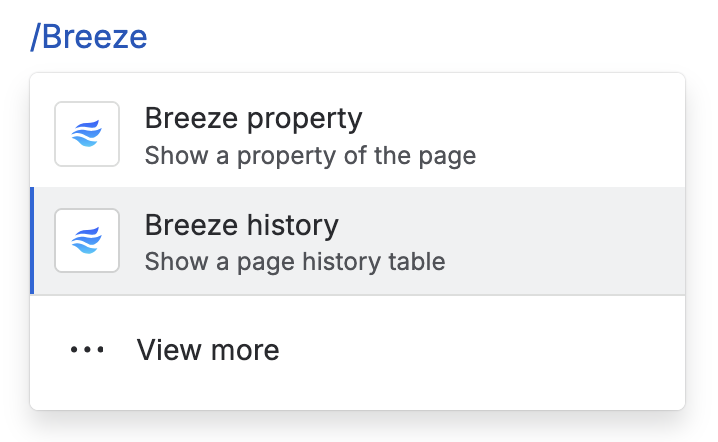
Section titled “Adding the history macro”To add the macro to a Confluence page, open the page editor and type /Breeze history. Select the macro from the list of suggestions.
Configuring the history macro
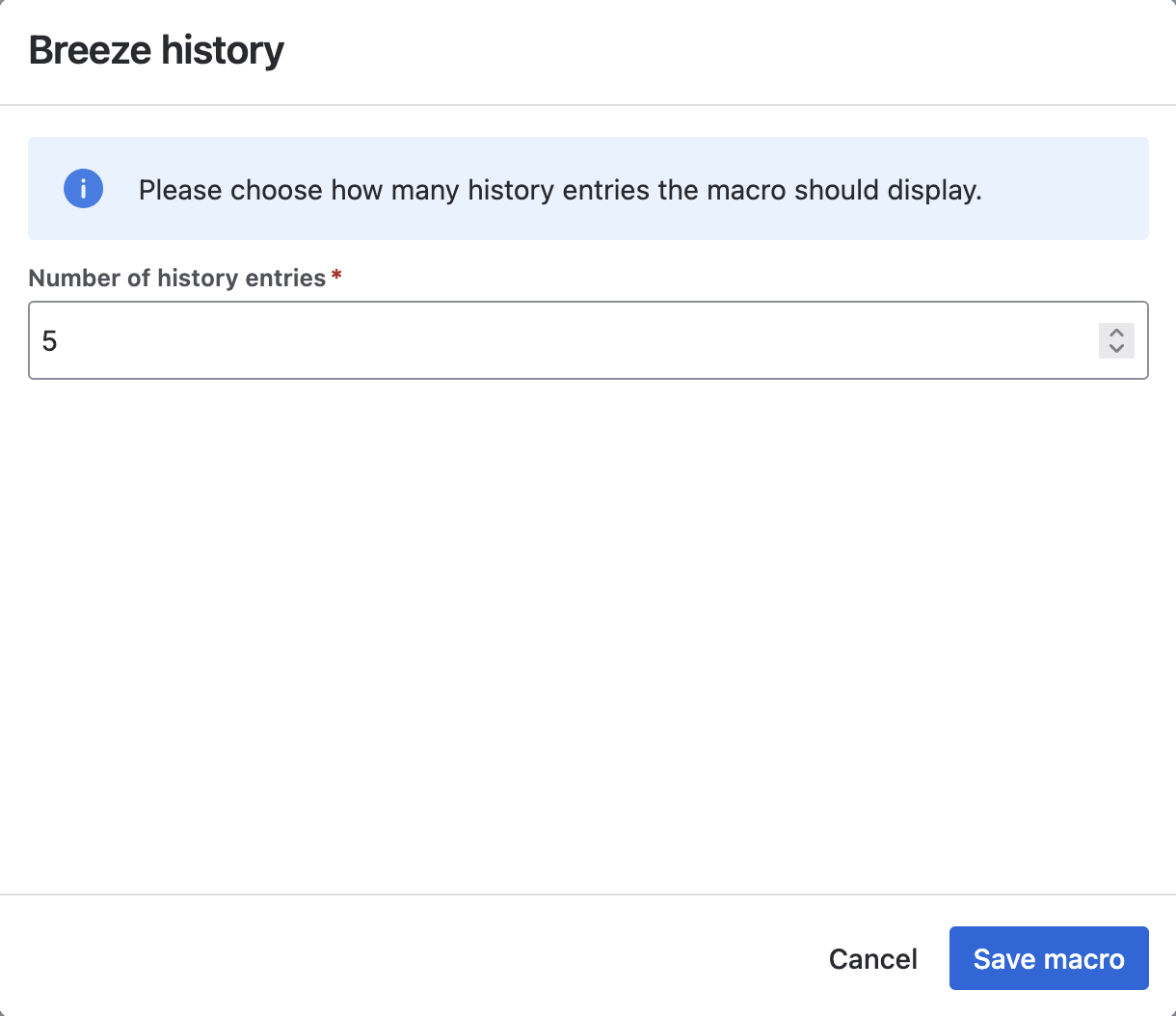
Section titled “Configuring the history macro”The macro settings allow you to specify the number of latest history records to display.
Understanding the history records
Section titled “Understanding the history records”The history macro displays the most recent records first, with each record containing the following information:
- Date: The date and time when the event occurred.
- Event: The type of event, such as a page update, status change, or merge via a working copy.
- Details: Additional information about the event, such as status transitions, the user who performed the action, or the assigned approvers.
- Version: The page version associated with the event.
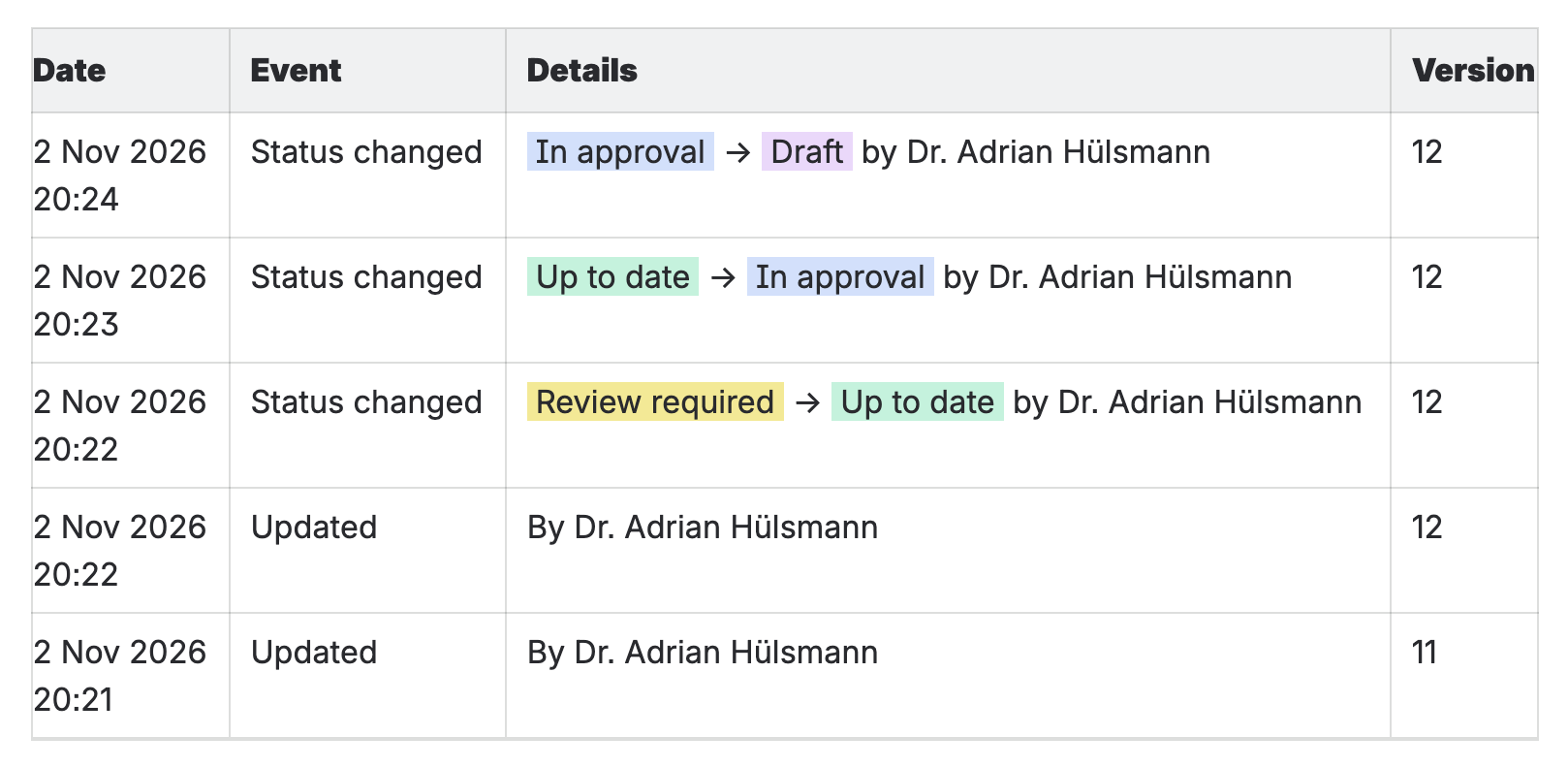
Together, these records provide an audit trail of page activity, making it easy to review changes and events over time.
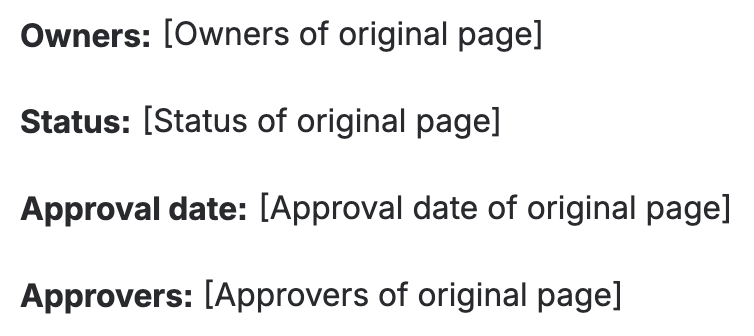
Please note that on working copies, the history macro displays a placeholder instead of history records to avoid confusion between the working copy and the original page.

Property macro
Section titled “Property macro”The property macro allows you to display individual page properties, such as owners, status, approvers, or creation date, directly on a Confluence page.
Adding the property macro
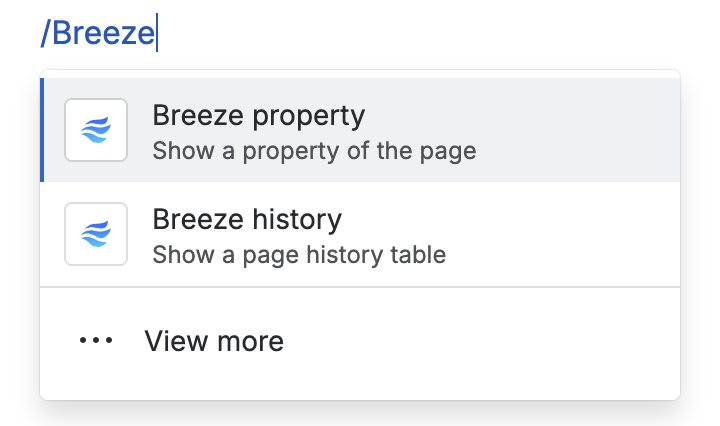
Section titled “Adding the property macro”To add the macro to a Confluence page, open the page editor and type /Breeze property. Select the macro from the list of suggestions.
Configuring the property macro
Section titled “Configuring the property macro”In the macro settings, select the property you want to display from the dropdown menu.
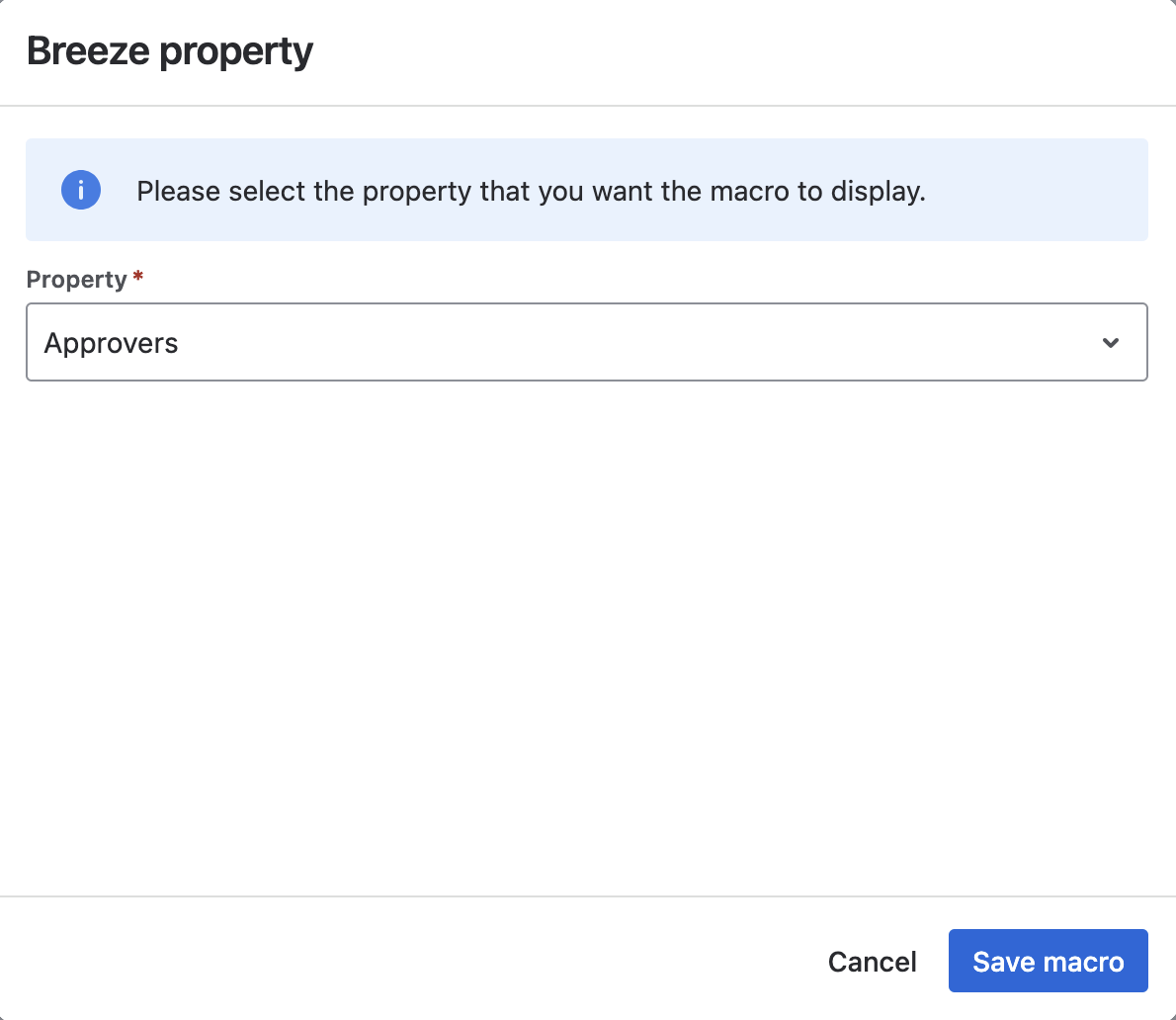
The following properties are available:
- Approval date
- Approvers
- Contributors
- Creation date
- Creator
- Owners
- Page ID
- Status
- Version
Each macro displays a single property. To display multiple properties on the same page, simply add the macro multiple times and select a different property for each instance.
Displaying properties
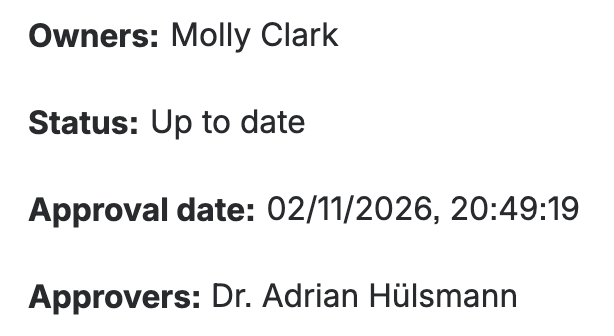
Section titled “Displaying properties”The macro displays only the value of the selected property, without a label. You can add your own label or surrounding text to customize how the information is presented on the page.
Please note that on working copies, the property macro displays placeholders instead of actual values to avoid confusion between the working copy and the original page.